
Once you purchase our song mp3s, you can play them however you want… most families use mp3 apps like Cloudbeats or Evermusic. Some burn CDs or Yoto cards.
If you want to be able to play these songs on your phone, you’ll need an mp3 player app.
I have a couple recommended apps with tutorials for each below. Because I do not work for these apps, I cannot fix them on your device or control anything these 3rd party apps change.
Phones and apps are constantly changing, so just do some google searching or ask Chat GPT & figure out what works for you!
Honestly, we built our own app because people were so often frustrated trying to download a high volume of mp3s and figure out how to get them onto their various devices. We do all our own tech support and add new songs & supplemental content regularly. I’ve insisted on keeping the annual app price insanely low compared to other curriculum that has this much value. The same login can be used on all your computers/ ipads/ phones, so any person in your house can listen any time/ anywhere.
Still, I know some people prefer downloads! So this page is my attempt to help you get the downloads on your device.
Best iPhone App for the mp3 files
CloudBeats (iOS) – The one-time purchase version of this app allows you to get entire albums on your device. It’s $9.99 as of 2026. (None of the free iPhone apps I’ve tried work well…. let me know if you find one.)
The main advantages of Cloudbeats are:
- You can import entire albums of audio files – Musical Memory & other homeschooling audio files
- If you use CloudBeats for homeschooling audio, you won’t have it mixed in with all the streaming music like you would on Youtube Music.
Click here for –> Video tutorial of how to get the songs in Cloudbeats.
Or if you’re more of a pictures/ words person, here are written instructions with pictures for getting your Musical Memory songs in CloudBeats with an iPhone.
Android Apps for mp3 files
The 3 apps Android users have said they like best are Musixmatch, and Music Speed Changer: Audipo, and Music Player: MP3 player
For the Android apps, here are the steps you follow:
- Download the songs from our email by clicking the download links & unzipping the files on your phone.
- Download the mp3 app
- Allow the app permission to access songs from your device.
- They should automatically appear.
Youtube Music
In some ways, Youtube Music is the easiest option on all devices across the board, but sometimes it won’t let you download duplicate songs. If you look carefully at the images below, you’ll see that Youtube is missing Week 1 and 2 “bible” because the program did not let me download the same Bible song multiple times. That may or may not bother you.
Personally, I prefer cloudbeats because I like the weekly playlist to be a no-brainer and because I like most of my homeschool audio contained in one app!
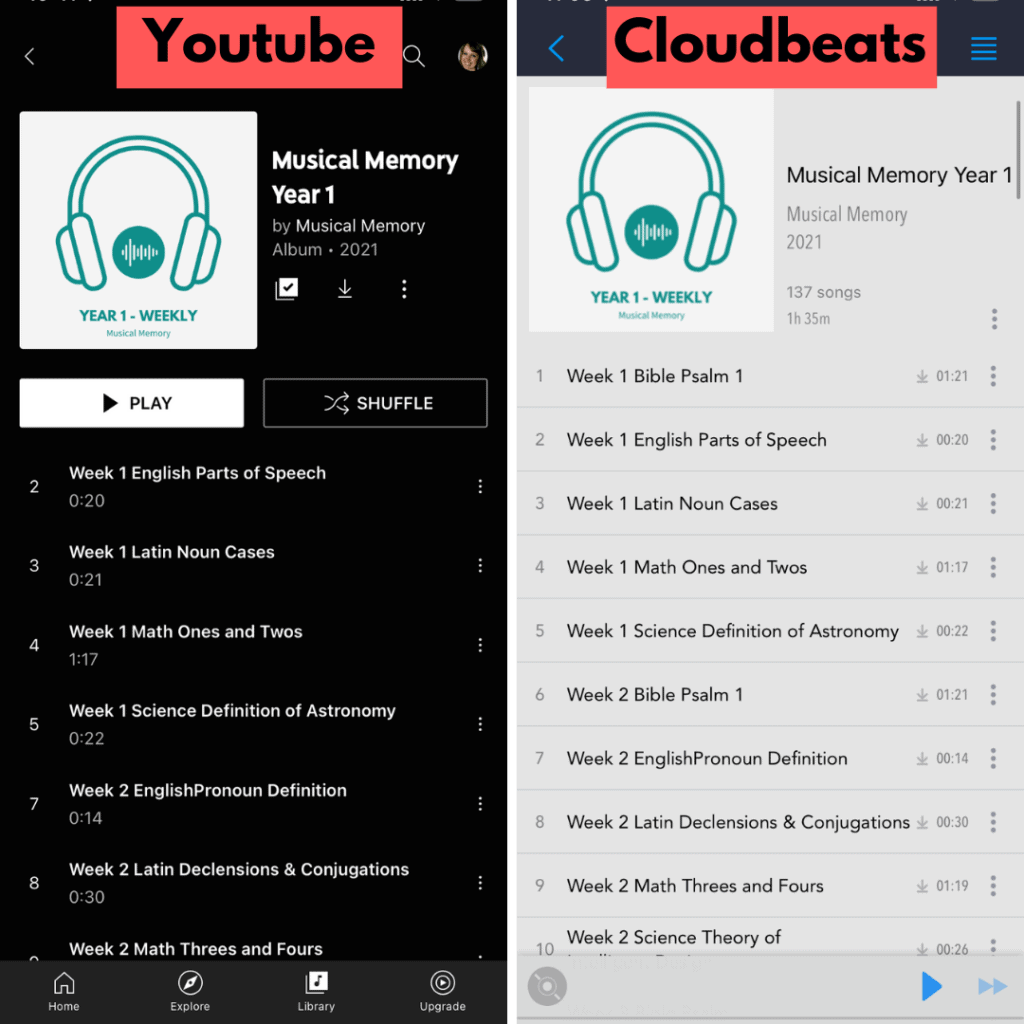
Bottom line: Youtube Music (left) is extremely easy to download the songs but it might automatically delete duplicate song files, depending on your device, so your week by week playlist might be missing some of the duplicates. Then you’d just have to figure out for yourself if it works for you! (You can just look at the printed guide though and figure out which songs to play!! The non-duplicates may not bother you.)
Click here for –> Youtube Instructions Step by Step
Apple Music
You can follow a similar process as described above with Youtube Music for Apple Music, only if you are a paid Apple Music subscriber. You open Apple Music on your computer, import the downloaded files to Apple Music, and it should automatically sync across your devices.